Showing posts with label LWC. Show all posts

Thursday, December 23, 2021

Get selected radio button value in LWC

This post explains how to get selected radio button in LWC. Below is demo of output :

Get selected radio button value in LWC

To use the radio button in LWC you have to use the lightning-radio-group tag. you can get the value of the selected radio button with the help of event.target.value .

RadioButton.cmp :

<template>
    <div style="background:white;padding:10px;">
        <lightning-radio-group name="RadioGroup"
                                label="SFDC"
                                options={options}
                                value={value}
                                onchange={valChange}
                                type="radio">
        </lightning-radio-group>
        <br/>
        <div>* Selected value is <b>{value}</b></div>
    </div>
</template>

RadioButton.js:

import { LightningElement } from 'lwc';
export default class RadioButton extends LightningElement {
    value = 'LWC';
    get options() {
        return [
            { label: 'LWC', value: 'LWC' },
            { label: 'SALESFORCE', value: 'SALESFORCE' },
            { label: 'LIGHTNING COMPONENT', value: 'LIGHTNING COMPONENT' },
        ];
    }
    valChange(event){
        this.value = event.target.value;
    }
}

RadioButton.meta:

<?xml version="1.0"?>
<LightningComponentBundle xmlns="http://soap.sforce.com/2006/04/metadata">
    <apiVersion>51.0</apiVersion>
    <isExposed>true</isExposed>
    <targets>
        <target>lightning__RecordPage</target>
        <target>lightning__AppPage</target>
        <target>lightning__HomePage</target>
        <target>lightningCommunity__Page</target>
        <target>lightningCommunity__Default</target>
    </targets>
</LightningComponentBundle>


Thanks, 
Lovesalesforceyes


Wednesday, December 8, 2021

How to make text field read only in LWC and AURA

This post explains how to make text field read only in LWC and AURA salesforce. To make the field read only in lightning there are two ways :

  • readonly="true"
  • disabled = "true"

readOnly.html(LWC):

<template>
    <div style="padding-left:100px; width:300px;">
        <lightning-input type="text" label="This is read only field" value="Read only field" readonly/>
    </div>
    <div style="padding-left:100px; width:300px;">
        <lightning-input type="text" label="This is read only field" value="Read only field" disabled="true"/>
    </div>
</template>

readOnly.cmp(AURA):

<aura:component >
    <div style="padding-left:100px; width:300px;">
        <lightning:input type="text" readonly="true" value="Read only field" label="This is read only field" />
    </div>
    <div style="padding-left:100px; width:300px;">
        <lightning:input type="text" disabled="true" value="Read only field" label="This is read only field" />
    </div>
</aura:component>


OUTPUT :

How to make text field read only in LWC and AURA

Thanks, 
Lovesalesforceyes


Tuesday, December 7, 2021

How to use standard lightning icons in LWC and AURA salesforce

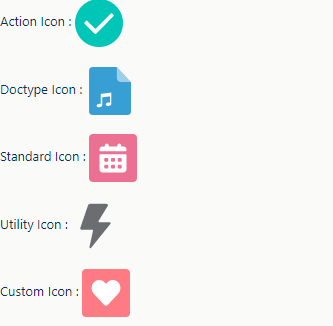
This post explains how to use standard lightning icons in LWC and AURA salesforce. Standard lightning icons are of five types and we can use these icons in our component with the help of lightning-icon tag.

  • Action Icon :  These are used to show actions which user can take.
  • Doctype Icon : These are used to show type of file.
  • Standard Icon : These are used to show standard objects and entities.
  • Utility Icon : These are used throughout the interface.
  • Custom Icon : These are used to represent custom object.

slds_Icons.html(LWC):

<template>
    <div>Action Icon : 
        <lightning-icon icon-name="action:approval" title="Approved" size="medium"></lightning-icon>
    </div><br/>
     <div> Doctype Icon :
         <lightning-icon icon-name="doctype:audio" title="Audio" size="large"></lightning-icon>
     </div><br/>
     <div> Standard Icon :
        <lightning-icon icon-name="standard:event" title="Event" size="large"></lightning-icon>
     </div><br/>
     <div> Utility Icon :
        <lightning-icon icon-name="utility:connected_apps" title="Connected" size="large"></lightning-icon>
     </div><br/>
    <div> Custom Icon :
         <lightning-icon icon-name="custom:custom1" title="custom1" size="large"></lightning-icon>
    </div>
</template>

slds_Icons.cmp(AURA):

<aura:component >
    <div>Action Icon : 
        <lightning:icon iconName="action:approval" title="Approved" size="medium" />
    </div><br/>
     <div> Doctype Icon :
         <lightning:icon iconName="doctype:audio" title="Audio" size="large" />
     </div><br/>
     <div> Standard Icon :
        <lightning:icon iconName="standard:event" title="Event" size="large" />
     </div><br/>
     <div> Utility Icon :
        <lightning:icon iconName="utility:connected_apps" title="Connected" size="large" />
     </div><br/>
    <div> Custom Icon :
         <lightning:icon iconName="custom:custom1" title="custom1" size="large" />
    </div>
</aura:component>


OUTPUT :


How to use standard icons in LWC and AURA salesforce


Thanks, 
Lovesalesforceyes


Sunday, December 5, 2021

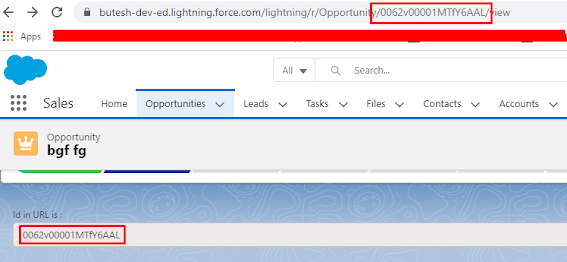
How to get Id from URL in LWC

This post explains how to get Id from URL in LWC.

getParametersFromURL.html :

<template>
    <div class="slds-p-around_medium lgc-bg">
            <lightning-input type="text" label="Url " value={urlIddisabled="true"></lightning-input>
    </div>
</template>


getParametersFromURL.js :

import { LightningElement, track} from 'lwc';
export default class getParametersFromURL extends LightningElement {
    @track urlId;
    connectedCallback() {
        var urlParameters = window.location.href;
        var urlStateParameters = urlParameters.split('Opportunity/');
        var urlIDValue = urlStateParameters[1];
        urlIDValue = urlIDValue.split('/');
        this.urlId = urlIDValue[0];
    }
}


How to get Id from URL in LWC


Thanks, 
Lovesalesforceyes

Tuesday, November 9, 2021

Server side pagination in LWC and AURA salesforce

This post explains server side pagination in LWC. Below is the demo of output :


pagination in LWC


To change the number of records in a single page, change pagesize (variable in data_table.js) accordingly.


data_table.cmp :


<template>
    <div>
        <lightning-datatable
                key-field="id"
                data={caseData}
                columns={caseColumns}
                onrowaction={handleRowAction}>
        </lightning-datatable>
    </div>  

     <template if:true={showpagination}>
        <lightning-layout-item padding="around-small">
            <div class="slds-align_absolute-center">
                <lightning-button variant="base" 
                                    label="First" 
                                    disabled={disableFirst
                                    onclick={handleFirst}
                                    class="slds-m-left_x-small">
                </lightning-button>
                <lightning-button variant="base" 
                                    label="<<" 
                                    disabled={disableFirst
                                    onclick={handlePrevious}
                                    class="slds-m-left_x-small slds-m-right_x-small">
                </lightning-button>
                <template for:each={pagelistfor:item="item" for:index="index">
                    <span key={itemdata-id={itemclass="testcss slds-m-left_xx-small slds-m-right_xx-small slds-p-horizontal_x-small">
                        <b> <a class="testcss"  onclick={processMename={itemdata-id={item}>{item}</a></b>
                    </span>
                </template>
                <lightning-button variant="base" 
                                label=">>" 
                                disabled={disableNext
                                onclick={handleNext}
                                class="slds-m-left_x-small">
                </lightning-button>
                <lightning-button variant="base" 
                                label="Last" 
                                disabled={disableNext
                                onclick={handleLast}
                                class="slds-m-left_x-small">
                </lightning-button>
            </div>
        </lightning-layout-item>
    </template>
   
</template>


data_table.js :


import { LightningElement,track,wire } from 'lwc';
import loadCases from '@salesforce/apex/data_table.loadCases';

export default class data_table extends LightningElement {

    @track pagenumber = 1;
    @track recordstart = 0;
    @track recordend = 0;
    @track totalrecords = 0;
    @track pagesize = 3;
    @track totalpages = 1;
    @track showpagination=true;
    @track pagelist;
    @track isLoaded = false;
    @track caseData;
    @track caseColumns = [
    { label: 'Case Number', fieldName: 'CaseNumber', type: 'text'},
    { label: 'Subject', fieldName: 'Subject', type: 'text'},
    { label: 'Priority', fieldName: 'Priority', type: 'text'}
    ];

    @wire(loadCases, {
    pageNumber: "$pagenumber",
    pageSize: "$pagesize"
    })
    getCaseRecord(result){
        if (result.data) {
            this.caseData = result.data.caseList;
            this.totalrecords = result.data.totalRecords;
            this.recordstart = result.data.recordStart;
            this.recordend = result.data.recordEnd;
            this.totalpages = Math.ceil(this.totalrecords / this.pagesize);
            this.generatePageList(this.pagenumber, this.totalpages);

            this.isLoaded = false;
            if(this.totalpages==1){
                this.showpagination=false;
            }else{
            this.showpagination=true
            }
        }
    }


    renderedCallback(){
        this.template.querySelectorAll('.testcss').forEach((but) => {
            but.style.backgroundColor = this.pagenumber===parseInt(but.dataset.id,10) ? '#F47920' : 'white';
            but.style.color = this.pagenumber === parseInt(but.dataset.id, 10) ? 'white' : 'black';
        });
    }


    handleFirst(event) {
        this.isLoading = true;
        var pagenumber = 1;
        this.pagenumber = pagenumber;
    }

    processMe(event) {
        var checkpage = this.pagenumber;
        this.pagenumber = parseInt(event.target.name);
        if (this.pagenumber != checkpage) {
        this.isLoading = true;
        }
    }

    get disableFirst() {
        if (this.pagenumber == 1) {
        return true;
        }
        return false;
    }

    get disableNext() {
        if (
        this.pagenumber == this.totalpages ||
        this.pagenumber >= this.totalpages
        ) {
        return true;
        }
        return false;
    }

    handlePrevious(event) {
        this.isLoading = true;
        this.pagenumber--;
    }

    handleNext(event) {
        this.isLoading = true;
        this.pagenumber = this.pagenumber + 1;
    }

    handleLast(event) {
        this.isLoading = true;
        this.pagenumber = this.totalpages;
    }

    generatePageList = (pagenumber, totalpages) => {
        var pagenumber = parseInt(pagenumber);
        var pageList = [];
        var totalpages = this.totalpages;
        this.pagelist = [];
        if (totalpages > 1) {
            if (totalpages < 3) {
                if (pagenumber == 1) {
                    pageList.push(12);
                }
                if (pagenumber == 2) {
                    pageList.push(12);
                }
            } else {
                if (pagenumber + 1 < totalpages && pagenumber - 1 > 0) {
                    pageList.push(pagenumber - 1, pagenumber, pagenumber + 1);
                } else if (pagenumber == 1 && totalpages > 2) {
                    pageList.push(123);
                } else if (pagenumber + 1 == totalpages && pagenumber - 1 > 0) {
                    pageList.push(pagenumber - 1, pagenumber, pagenumber + 1);
                } else if (pagenumber == totalpages && pagenumber - 1 > 0) {
                    pageList.push(pagenumber - 2, pagenumber - 1, pagenumber);
                }
            }
        }
        this.pagelist = pageList;
    };

}


data_table.apx :


public with sharing class data_table {
    @AuraEnabled(cacheable=true)
    Public static caseDataWrapper loadCases(Decimal pageNumber,Decimal pageSize){
        caseDataWrapper res = new caseDataWrapper();
        Integer pSize;
        if(pageSize!=null && pageSize!=0.0){
            pSize = (Integer)pageSize;    
        }else{
            pSize=10;  
        } 
        Integer pNumber = (Integer)pageNumber;
        Integer offset = (pNumber - 1) * pSize;
        list<case> c = new list<case>();
        String query = 'Select id,CaseNumber,Subject, priority from Case LIMIT :pSize OFFSET :offset';
        String countQuery = 'select count() from case';
        c = Database.query(query);
        res.caseList = c;
        res.totalRecords = Database.countQuery(countQuery);
        res.recordStart = offset + 1;
        Integer recordEnd = pSize * pNumber;
        res.recordEnd = res.totalRecords >= recordEnd ? recordEnd : res.totalRecords; 
        return res;
    }

    public class caseDataWrapper {
        @AuraEnabled
        public Integer totalRecords {get;set;}
        @AuraEnabled
        public Integer recordStart {get;set;}
        @AuraEnabled
        public Integer recordEnd {get;set;}
        @AuraEnabled
        public List<case> caseList {get;set;}
    } 
}


Thanks, 
Lovesalesforceyes

Saturday, November 6, 2021

How to add menu button in lightning datatable salesforce

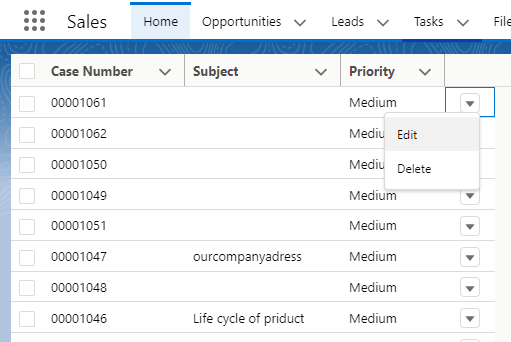
This post explains how to add menu button in lightning datatable in LWC and AURA. Below is the demo of output :


How to add menu button in lightning datatable salesforce


menuButton.cmp :


<template>
    <div>
        <lightning-datatable
                key-field="id"
                data={caseData}
                columns={caseColumns}
                onrowaction={handleRowAction}>
        </lightning-datatable>
    </div>    
</template>


menuButton.js :


import { LightningElement,track,wire } from 'lwc';
import loadCases from '@salesforce/apex/data_table.loadCases';

const actions = [
{ label: 'Edit', name: 'Edit' },
{ label: 'Delete', name: 'Delete' },
];

export default class menuButton extends LightningElement {
    @track caseData;
    @track caseColumns = [
    { label: 'Case Number', fieldName: 'CaseNumber', type: 'text'},
    { label: 'Subject', fieldName: 'Subject', type: 'text'},
    { label: 'Priority', fieldName: 'Priority', type: 'text'},
    {
    type: 'action',
    typeAttributes: { rowActions: actions },
    }
    ];

    @wire(loadCases)
    getCaseRecord(result){
        if (result.data) {
            this.caseData = result.data;
        }
    }

    handleRowAction(event){
        const actionName = event.detail.action.name;
        if(actionName == 'Edit'){
            // Edit operation
            console.log('Edit');
        }
        if(actionName == 'Delete'){
            // Delete operation
            console.log('Delete');
        }
    }
}


data_table.apx :


public with sharing class data_table {
    @AuraEnabled(cacheable=true)
    Public static list<case> loadCases(){
        list<case> c = new list<case>();
        String query = 'Select id,CaseNumber,Subject, priority from Case';
        c = Database.query(query);
        return c;
    }
}


Thanks, 
Lovesalesforceyes

Monday, November 1, 2021

How to hide the default row number from lightning datatable salesforce

In this post I will explain how to remove default row number from lightning datatable in LWC and aura.

Method 1 : 

Remove show-row-number-column attribute from the lightning datatable.

Method 2:

1.) Create csv file removeRow.css and paste the following code.


removeRow.css:

.slds-table tr th:first-child{

    width:0 !important;

}


2.) Create new static resource with the following details:

  • Name               : removeRow
  • File                  : Upload the removeRow.css file created in step 1.
  • Cache Control : Public


Hide the default row number from lightning datatable salesforce

3.) Refer the following code:


data_table.cmp:

<template>
    <div>
        <lightning-datatable
                key-field="id"
                data={caseData}
                columns={caseColumns}>
        </lightning-datatable>
    </div>    
</template>


data_table.js:

import { LightningElement,track,wire } from 'lwc';
import loadCases from '@salesforce/apex/data_table.loadCases';
import {loadStyle} from 'lightning/platformResourceLoader'
import REMOVEROW from '@salesforce/resourceUrl/removeRow'

export default class data_table extends LightningElement {
    @track caseData;
    @track caseColumns = [
    { label: 'Case Number', fieldName: 'CaseNumber', type: 'text'},
    { label: 'Subject', fieldName: 'Subject', type: 'text'},
    { label: 'Priority', fieldName: 'Priority', type: 'text'},
    ];

    @wire(loadCases)
    getCaseRecord(result){
        if (result.data) {
            this.caseData = result.data;
        }
    }

    renderedCallback(){ 
        Promise.all([
            loadStyle( thisREMOVEROW)
            ]).then(() => {
                console.log( 'Files loaded' );
            })
            .catch(error => {
                console.log( 'error',error );
        });
    }

}


data_table.apx:

public with sharing class data_table {
    @AuraEnabled(cacheable=true)
    Public static list<case> loadCases(){
        list<case> c = new list<case>();
        c = [Select id,CaseNumber,Subject, priority from Case];
        return c;
    }
}


Thanks,
Lovesalesforceyes

Get selected radio button value in LWC

This post explains how to get selected radio button in LWC. Below is demo of output : To use the radio button in LWC you have to use the  li...